
Learning how to set up live tv streaming on firestick has revolutionized how millions watch television in 2026. With over 85% of viewers now streaming daily content, the Amazon Firestick stands as one of the most affordable and flexible solutions for accessing thousands of live channels without traditional cable contracts.
The benefits are compelling: stream sports, news, and entertainment from anywhere with WiFi, pay only for channels you actually watch, and enjoy 4K quality on a device that fits in your pocket. Whether you’re cutting the cord completely or supplementing existing services, understanding how to set up live tv on firestick correctly ensures smooth streaming from day one.
This comprehensive firestick live tv setup guide walks you through every step—from verifying your device compatibility to optimizing settings for buffer-free viewing. By the end, you’ll confidently set up live tv streaming on firestick like a pro and stream live tv on amazon firestick with the knowledge to troubleshoot any issues that arise.
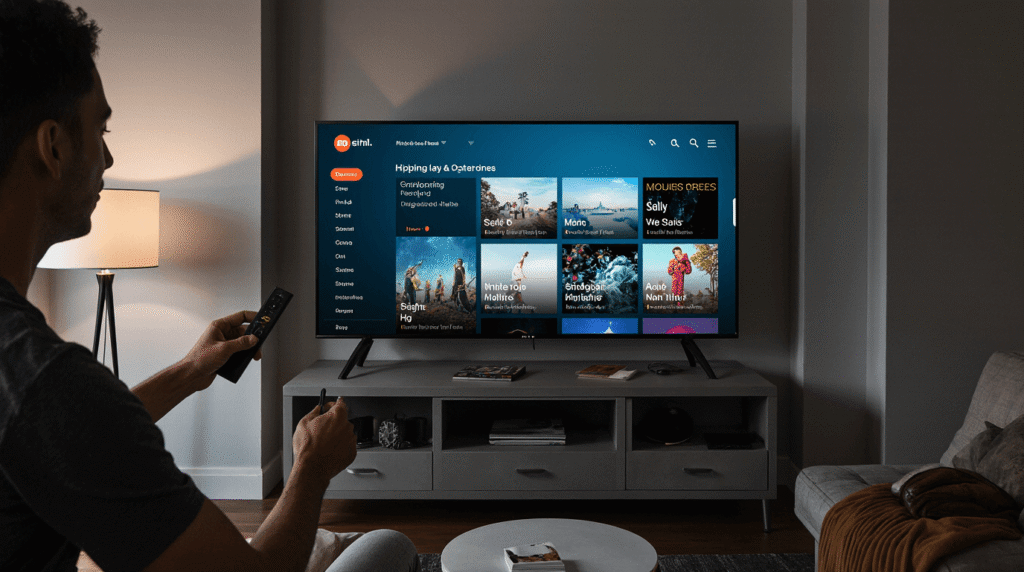
What You Need To Install Live TV On Firestick
Before diving into installation, verify you have the essential components for successfully learning how to set up live tv streaming on firestick.
Compatible Firestick Models
All current Amazon Fire TV devices support live streaming apps, but performance varies by model. Here’s what works in 2026:
Recommended Models:
-
- Fire TV Stick 4K Max (2023/2025): The gold standard with 2.0 GHz processor, Wi-Fi 6E support, and 16GB storage. Handles 4K live streams effortlessly.
-
- Fire TV Stick 4K Plus (2025): Latest model with enhanced AI features and Wi-Fi 6 for smooth streaming.
-
- Fire TV Stick 4K (2023): Solid performer with 8GB storage, supports all HDR formats including Dolby Vision.
-
- Fire TV Cube (3rd Gen): Premium option with hands-free Alexa and superior processing power.
Budget-Friendly Options:
-
- Fire TV Stick HD (2024): Supports streaming up to 1080p. Works well for HD channels but lacks 4K capability.
-
- Fire TV Stick 4K Select (2025): Entry-level 4K model without Dolby Vision or Atmos.
Still Functional (if you own them):
-
- Fire TV Stick 3rd Gen (2020), Fire TV Stick Lite (2020), and Fire TV Stick 4K 1st Gen (2018) will work but may experience slower app loading and occasional buffering with high-bitrate 4K streams.
Pro Tip: The 2026 Firestick 4K Max models feature enhanced processors and Wi-Fi 6E support, making them ideal for high-bitrate live streams that challenged older devices.
Minimum Internet Speed Requirements
Your internet connection is the foundation of quality live tv streaming on firestick. Here’s what you need:
Absolute Minimums:
-
- HD Streaming (720p-1080p): 5-10 Mbps consistent speed
-
- 4K Streaming: 25-40 Mbps consistent speed
-
- Multiple Simultaneous Streams: Add 10-15 Mbps per additional stream
Reality Check: Speed tests measure peak capacity, not real-time stability. Your actual streaming quality depends on:
-
- Network congestion: Evening peak hours (6-11 PM) often see 30-50% speed reductions
-
- Connection stability: Low jitter and packet loss matter more than raw speed
-
- ISP throttling: Some providers deliberately slow streaming traffic
Recommended Setup:
-
- Run speed tests during typical viewing hours at Fast.com or Speedtest.net
-
- Aim for 50+ Mbps if streaming 4K or running multiple devices
-
- Consider upgrading if consistently below 25 Mbps
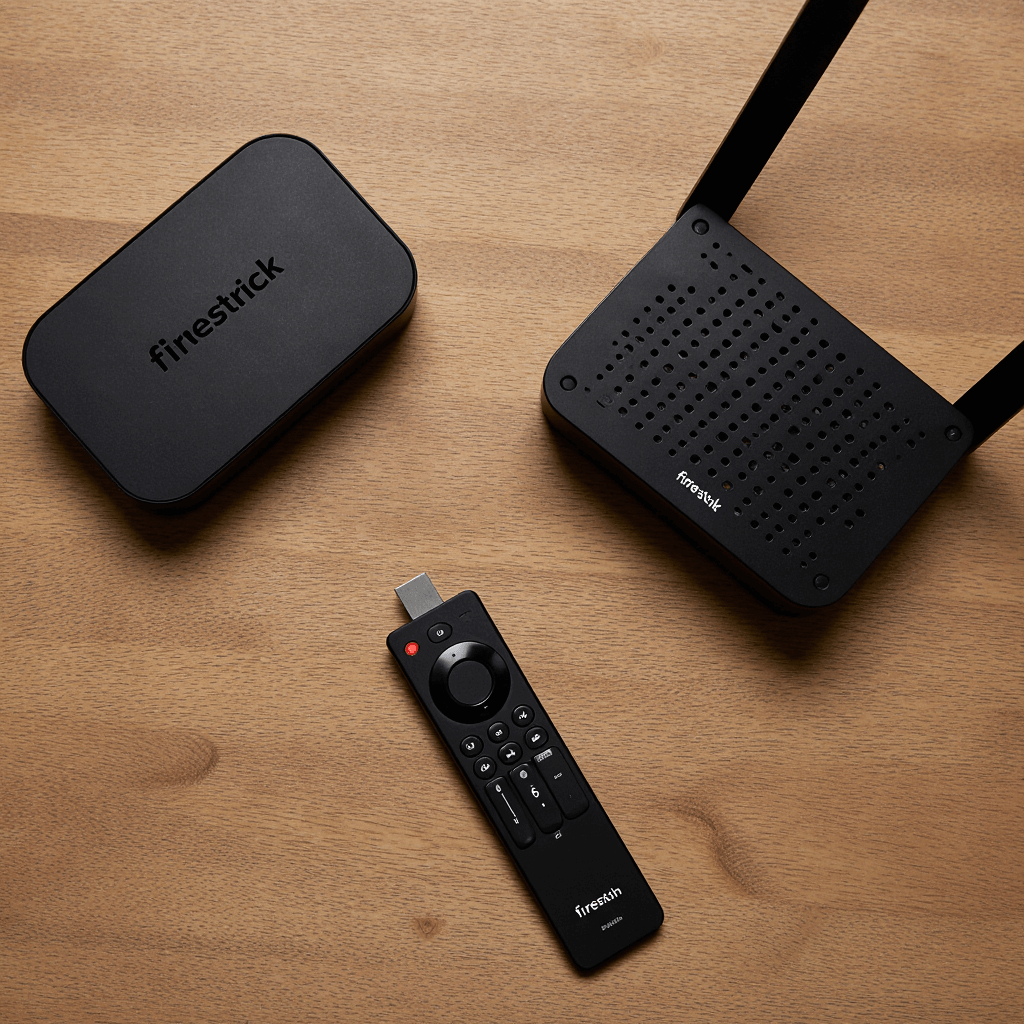
Choosing a Reliable Live TV Provider
Not all streaming services deliver the same experience. When selecting a provider for how to set up live tv on firestick, prioritize these factors:
Essential Features:
-
- Channel Selection: Verify they carry networks you actually watch (sports, news, entertainment)
-
- Streaming Quality: Support for HD/4K with adaptive bitrate streaming
-
- Device Compatibility: Confirmed Firestick app availability or M3U playlist support
-
- Trial Period: 7-14 day free trials let you test before committing
-
- Customer Support: Responsive help when technical issues occur
Red Flags to Avoid:
-
- No free trial or money-back guarantee
-
- Unrealistic “lifetime” subscriptions for one-time payments
-
- No visible contact information or support channels
-
- Consistently poor user reviews mentioning buffering and downtime
Providers like Live TV Access demonstrate what quality services offer: stable infrastructure optimized for Firestick devices, transparent pricing, and responsive support that keeps streaming smooth even during high-traffic events.
Step-by-Step Guide to Install Live TV on Firestick
This section covers the complete installation process for firestick live tv setup guide from preparation through first stream.
Prepare Your Firestick Settings
Many IPTV and live TV apps require installation outside the Amazon Appstore. Enable this capability before proceeding:
Step 1: Enable Apps from Unknown Sources
-
- From Firestick home screen, navigate to Settings (gear icon top right)
-
- Select My Fire TV
-
- Choose Developer Options
-
- Toggle Apps from Unknown Sources to ON
-
- Confirm the warning message by selecting Turn On
Step 2: Enable ADB Debugging (Optional but Recommended)
In the same Developer Options menu:
-
- Toggle ADB Debugging to ON
-
- This enables advanced troubleshooting if needed
Security Note: Only install apps from trusted sources. Enabling unknown sources is necessary for many legitimate streaming apps not available in Amazon’s store, but it does require user vigilance.
Download and Install the Live TV App
The installation method depends on your provider’s app availability:
Method 1: Amazon Appstore Installation (Easiest)
If your provider has an official Appstore app:
-
- Press Home button on remote
-
- Navigate to the Search icon (magnifying glass)
-
- Type your provider’s app name
-
- Select the app from results
-
- Click Download or Get
-
- Wait for installation to complete (typically 30-90 seconds)
-
- Select Open or find the app in Your Apps & Channels
Method 2: Sideloading via Downloader App
For apps not in the Appstore:
-
- Install Downloader from Amazon Appstore (search “Downloader” by AFTVnews)
-
- Open Downloader app
-
- In the URL field, enter your provider’s APK download link
-
- Click Go to download the APK file
-
- Once downloaded, installation prompt appears automatically
-
- Select Install
-
- Wait for “App Installed” confirmation
-
- Select Done (not “Open” yet—configure settings first)
Popular Apps for 2026:
-
- IPTV Smarters Pro: User-friendly interface, supports Xtream Codes API
-
- TiviMate Premium: Professional TV guide interface, recording capability
-
- Perfect Player: Minimalist design, excellent EPG support
Critical Note: Always get APK links directly from your provider or their official website. Third-party download sites may distribute modified, unsafe versions.
Log In to Your Streaming Account
With the app installed, activate your service:
For Xtream Codes API (Most Common):
-
- Open your live TV app
-
- Select Add New User or Login
-
- Choose Login with Xtream Codes API
-
- Enter credentials provided by your service:
-
- Username: Your account username
-
- Password: Your account password
-
- Server URL: Provider’s server address (format: http://server.com:port)
-
- Enter credentials provided by your service:
-
- Click Add User or Login
-
- Wait for channel list to load (10-60 seconds depending on service size)
For M3U Playlist:
-
- Open your app
-
- Select Add Playlist
-
- Choose Add M3U URL
-
- Paste the M3U link provided by your service
-
- Name the playlist (optional)
-
- Click Add or OK
-
- Wait for channels to populate
Troubleshooting Login:
-
- Double-check credentials for typos—server URLs are case-sensitive
-
- Verify your subscription is active (check email confirmation)
-
- Ensure you’re using the correct login method (Xtream vs M3U)
-
- Contact provider support if repeated login failures occur
Configure Video and Playback Settings
Optimize your app’s settings immediately after logging in:
Player Settings:
-
- Navigate to Settings within your live TV app
-
- Select Player or Playback
-
- Choose Hardware Decoding (recommended for most Firesticks)
-
- Enable Auto Frame Rate if available (reduces judder)
Buffer Size:
-
- In Settings, find Buffer Size or Cache
-
- Set to Medium or Large if you experience buffering
-
- Note: Larger buffers use more RAM but provide smoother playback
EPG (Electronic Program Guide):
-
- Verify EPG URL is configured (usually automatic with Xtream login)
-
- Set EPG Update to daily automatic refresh
-
- Adjust EPG Shift if program times don’t match your timezone
Channel Organization:
-
- Create Favorites groups for frequently watched channels
-
- Hide channels you never watch (reduces clutter)
-
- Sort by genre (News, Sports, Entertainment) for easier browsing
Best Settings for Smooth Live TV Streaming
After you set up live tv streaming on firestick, these optimizations ensure the best possible streaming experience on your device.
Adjust Video Resolution
Within Your Live TV App:
-
- Access Settings > Video Quality
-
- For unstable connections: Select Auto (adaptive streaming)
-
- For stable 50+ Mbps connections: Select Original or 4K for maximum quality
-
- If buffering occurs: Manually select 1080p or 720p to reduce bandwidth
On Your Firestick System:
-
- Go to Settings > Display & Sounds
-
- Select Display
-
- Choose Video Resolution
-
- Match your TV’s native resolution (most modern TVs: 4K UHD 2160p)
Smart Tip: Forcing lower resolution than your connection supports wastes quality, but forcing higher resolution than your connection handles causes constant buffering. Let adaptive streaming do its job.
Improve WiFi Connection
Optimize Firestick WiFi:
-
- Navigate to Settings > Network
-
- Select your WiFi network
-
- If you have dual-band router, switch to 5GHz band (faster, less crowded than 2.4GHz)
-
- WiFi 6 routers paired with Firestick 4K Max provide optimal performance
Router Placement:
-
- Position router centrally in your home
-
- Elevate router (high shelves better than floors)
-
- Minimize physical obstructions (walls, furniture) between router and Firestick
-
- Keep router away from microwave ovens and cordless phones (interference sources)
Advanced Option: Ethernet Adapter
For rock-solid connections, use Amazon’s Ethernet Adapter for Fire TV:
-
- Plugs into Firestick’s power port
-
- Provides wired connection eliminating WiFi variability
-
- Costs ~$15-20 but eliminates 90% of streaming issues
-
- Essential for 4K streaming in WiFi-challenged environments
Reduce Buffering Issues
Buffering ruins the streaming experience after you set up live tv streaming on firestick. Attack it systematically:
Immediate Fixes:
-
- Close Background Apps: Hold Home button, select Apps, force close unused apps consuming bandwidth
-
- Clear App Cache: Settings > Applications > Manage Installed Applications > [Your Live TV App] > Clear Cache
-
- Restart Firestick: Hold Select and Play/Pause simultaneously for 5 seconds until restart
Network-Level Solutions:
-
- Reduce Competing Traffic: Pause large downloads, video calls, or cloud backups during viewing
-
- Prioritize Streaming: Enable QoS (Quality of Service) in router settings if available
-
- Schedule Heavy Usage: Download updates and backups during non-viewing hours
Provider-Side Considerations:
-
- Test during peak hours (evenings/weekends) when server loads highest
-
- If consistent buffering occurs, contact provider—may indicate overloaded servers
-
- Consider providers like Live TV Access that maintain robust infrastructure with geographic server distribution
Last Resort:
If all optimization fails, your internet plan may be insufficient. Contact ISP about:
-
- Upgrading to higher speed tier
-
- Checking for neighborhood congestion issues
-
- Switching to fiber or cable if currently on DSL
Troubleshooting Common Firestick Streaming Issues
Even with perfect setup, occasional problems occur. Here’s how to resolve them.
App Not Installing
Problem: APK fails to install or shows “Installation Blocked”
Solutions:
-
- Verify Unknown Sources: Settings > My Fire TV > Developer Options > Apps from Unknown Sources = ON
-
- Check Storage Space: Settings > Applications > Manage Installed Applications > Check available storage (need 500MB+ free)
-
- Delete Unused Apps: Remove apps you no longer use to free space
-
- Clear Downloader Cache: If using Downloader, open it > Settings > Clear Data
-
- Re-download APK: Sometimes downloads corrupt; delete and download again
-
- Try Different APK Source: Get installation file directly from provider’s website
Persistent Issues: Factory reset Firestick (Settings > My Fire TV > Reset to Factory Defaults) as last resort.
Streaming Freezing or Lagging
Problem: Video pauses, skips, or quality degrades mid-stream
Diagnosis First:
-
- Run Speed Test: Use Fast.com app on Firestick or separate device
-
- Check During Off-Peak: If freezing only happens 6-11 PM, likely ISP congestion
-
- Test Different Channels: If only specific channels freeze, it’s provider server issue
Solutions:
-
- Lower Video Quality: In app settings, reduce from 4K to 1080p or 720p
-
- Increase Buffer Size: App Settings > Player > Buffer Size > Large
-
- Switch to Wired Connection: Use Ethernet adapter
-
- Change DNS Settings:
-
- Settings > Network > Select WiFi > Advanced
-
- Manually set DNS to 8.8.8.8 (Google) or 1.1.1.1 (Cloudflare)
-
- Can bypass ISP throttling and improve routing
-
- Change DNS Settings:
-
- Contact Provider: Persistent issues across all devices suggests server-side problems
-
- Enable Hardware Acceleration: App Settings > Player > Use Hardware Decoder
Login or Activation Errors
Problem: “Invalid Credentials,” “Subscription Expired,” or “Server Not Found”
Step-by-Step Resolution:
-
- Verify Credentials:
-
- Copy-paste from provider email (avoids typos)
-
- Check for extra spaces before/after username or URL
-
- Confirm subscription is active (check provider dashboard/email)
-
- Verify Credentials:
-
- Check Server URL Format:
-
- Must include protocol: http:// or https://
-
- Includes port number: http://server.com:8080
-
- No trailing slashes: http://server.com:8080 NOT http://server.com:8080/
-
- Check Server URL Format:
-
- Test from Different Device:
-
- Try logging in via smartphone app or web player
-
- If works elsewhere, it’s Firestick-specific issue
-
- If fails everywhere, contact provider
-
- Test from Different Device:
-
- Update App:
-
- Check for app updates in Amazon Appstore
-
- If sideloaded, download latest APK version
-
- Update App:
-
- Clear App Data:
-
- Settings > Applications > Manage Installed Applications > [Your App]
-
- Select Clear Data (not just cache)
-
- Re-enter credentials fresh
-
- Clear App Data:
-
- Firewall/VPN Issues:
-
- If using VPN, try connecting/disconnecting
-
- Some providers block VPNs; others require them for geo-restricted content
-
- Firewall/VPN Issues:
Frequently Asked Questions
Q: Is live TV streaming on Firestick legal?
A: Yes, when using legitimate services with proper broadcasting licenses. Free apps that stream copyrighted content without authorization operate in legal gray areas. Stick to reputable paid services or free ad-supported platforms like Pluto TV, Tubi, and Freevee. Services like Live TV Access operate transparently with proper content licensing.
Q: Can I watch local channels on Firestick?
A: Yes, through multiple methods: Official apps from networks (NBC, ABC, CBS, Fox) offer live local programming in supported markets. Live TV streaming services like YouTube TV, Hulu + Live TV, and Sling TV include local channels. OTA (over-the-air) antenna DVRs with network streaming capability (Tablo, HDHomeRun) can stream local broadcasts to Firestick. Check which method provides your local stations before subscribing.
Q: Why does my stream buffer constantly despite fast internet?
A: Several factors beyond speed affect streaming: WiFi interference from neighbors’ networks, router congestion from multiple devices, ISP throttling of streaming traffic (run VPN test), provider server overload during peak hours, or Firestick thermal throttling (overheating). Try ethernet adapter, router QoS settings, and clearing Firestick vents.
Q: How many channels can I get with live TV streaming?
A: Varies dramatically by service: Free ad-supported services offer 100-300 channels. Budget IPTV services typically include 1,000-5,000 channels. Premium services may advertise 10,000+ channels (often includes international, regional variants, and PPV). Focus on quality over quantity—most users regularly watch 15-30 channels regardless of total available.
Q: Do I need a VPN for live TV streaming on Firestick?
A: Depends on your service and location. VPNs provide privacy by encrypting traffic, can prevent ISP throttling of streaming traffic, enable access to geo-restricted content, and are essential if using gray-market services. However, VPNs add slight latency and may reduce speeds, some streaming services block VPN connections, and legal services typically don’t require VPNs. For legitimate services, VPN use is personal preference. For questionable services, VPN is strongly recommended for privacy protection.
Conclusion
Setting up live tv streaming on firestick in 2026 offers unprecedented flexibility and value compared to traditional cable. By following this firestick live tv setup guide, you’ve learned to verify device compatibility, optimize internet connections, install apps correctly, and troubleshoot common issues.
The key to success is preparation: ensure your Firestick model supports your desired resolution, verify internet speeds meet streaming requirements, choose reputable providers with trial periods, and optimize settings before problems arise. Services that prioritize infrastructure quality make all the difference between frustrating buffering and smooth, reliable streaming.
Ready to cut the cord? Start by testing your current internet speed, selecting a provider offering free trials, and following the step-by-step installation process above. Within 30 minutes, you’ll be streaming thousands of channels with the confidence to handle any issues that arise.
For those researching providers, remember that quality infrastructure matters more than channel counts. Providers investing in robust server networks, offering transparent support, and maintaining consistent uptime deliver the premium live tv streaming on firestick experience you deserve. Start your streaming journey today and discover why millions have made the switch from cable to Firestick live TV