
Activate Live TV on IBO Player Pro in 7 Easy Steps
If you’ve been searching for a clean, reliable way to watch live TV on your Android or Smart TV device, IBO Player Pro consistently stands out as one of the most capable IPTV players available in 2026. Unlike general-purpose alternatives such as IPTV Smarters Pro — which targets a broader cross-platform audience — IBO Player Pro is built specifically around ease of activation, a polished interface, and stable playback for live channels and VOD content. Yet despite its straightforward design, plenty of users hit dead ends during setup because the activation flow isn’t immediately obvious.
This guide walks through exactly how to activate live TV on IBO Player Pro from scratch: what you need before you start, the precise steps to connect your subscription, how to configure the player for optimal performance, and the common mistakes that quietly degrade your streaming quality over time.
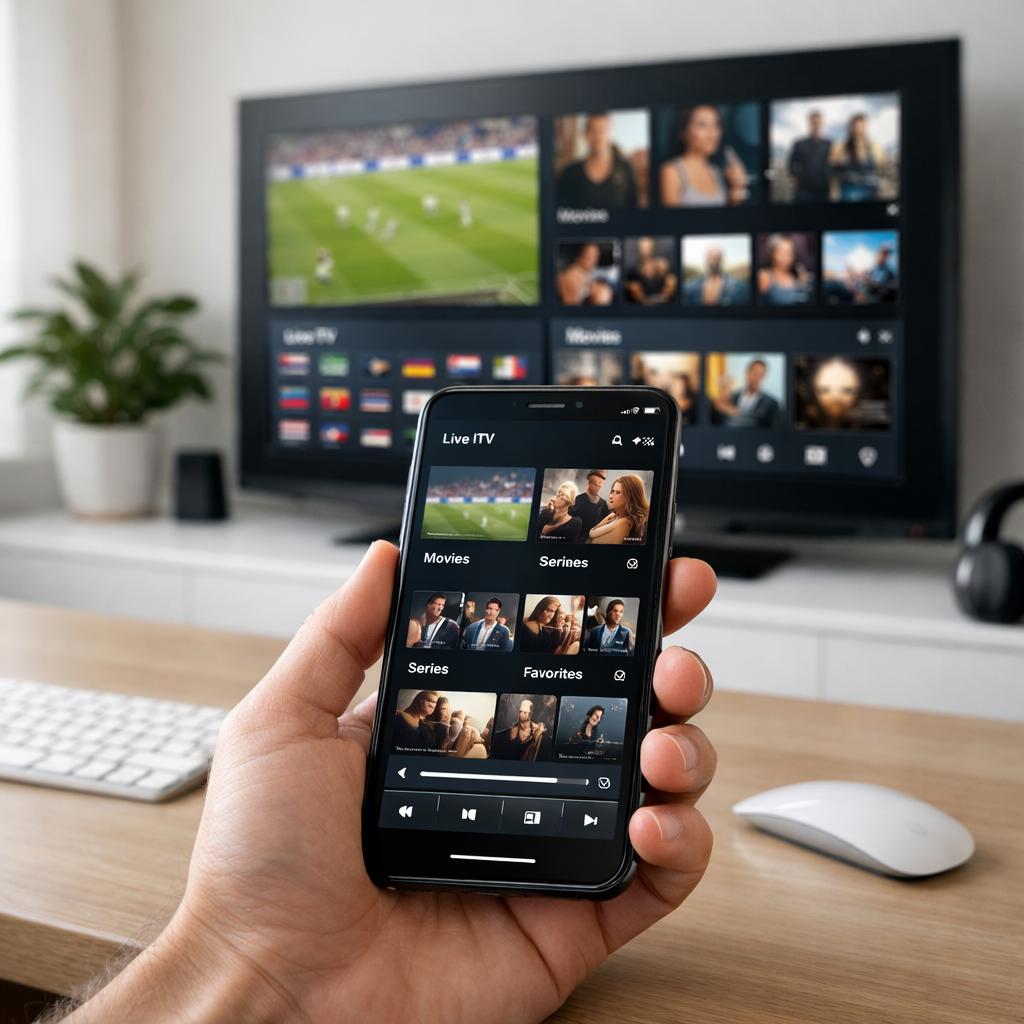
What Is IBO Player Pro and Why It Stands Out
IBO Player Pro is an IPTV media player developed for Android-based devices — Android TV boxes, Amazon Fire Stick, smartphones, and tablets. It reads M3U playlists and Xtream Codes API credentials, parsing them into an organized channel guide with live TV, video on demand, and catch-up TV sections. According to Wikipedia’s overview of IPTV technology, the underlying protocols IBO Player Pro relies on — HLS, M3U, and Xtream Codes — are the same standardized formats used across virtually all premium IPTV services worldwide, which guarantees broad compatibility.
What separates IBO Player Pro from many alternatives is its activation model. Rather than requiring technical configuration through developer menus or sideloading workarounds, the player offers a guided activation process that connects your subscription credentials to the app within a few taps. The interface is designed around remote control navigation, which makes it significantly more comfortable on a large screen than apps originally built for touchscreen use.
Remote-First Interface
Built for TV navigation with a D-pad — every menu, channel list, and EPG is accessible without a mouse or touchscreen.
Fast Channel Switching
Optimized channel-change speed with minimal buffering between selections, even on large playlists of 10,000+ channels.
EPG Guide Integrated
Program guide with current and upcoming schedule displayed directly over the channel list without leaving the player.
VOD & Series Support
Full video-on-demand library and organized series catalog alongside live channels in a single unified interface.
What You Need Before You Begin
Successful activation of IBO Player Pro depends on having the right elements ready before you open the app. Missing any one of these will either stall the setup or result in a connection that appears active but delivers poor playback quality.
Your IPTV subscription credentials
Your live TV provider will have sent you one of two things after purchase: either a server URL with a username and password (Xtream Codes format), or a direct M3U link. Both work with IBO Player Pro. If you received an email with login details like a server address, port number, username, and password, that is the Xtream Codes format — the recommended method for its reliability and feature support. If you only have a long URL ending in .m3u or .m3u8, that is the M3U playlist format.
A compatible device
IBO Player Pro runs on Android 5.0 or higher. This covers the vast majority of Android TV boxes, Fire Stick (4K and standard), and Android smartphones or tablets. It is not natively available on Samsung Tizen or LG webOS smart TVs — those require an external Android device connected via HDMI. For the full experience including EPG, recording, and catch-up, an Android TV box with at least 2GB of RAM is recommended.
A stable internet connection
For HD streaming (1080p), budget at least 10 Mbps of stable bandwidth dedicated to the player. For 4K streams, 25 Mbps or more is required. A wired Ethernet connection is strongly preferred over Wi-Fi — the additional stability eliminates most random buffering events that users mistakenly attribute to their IPTV provider.
Before you proceed: Check your subscription status is active. An expired or incorrectly entered password is the number one cause of failed activations — the app will load but channels either won’t appear or will throw a connection error. Confirm your credentials by logging into your provider’s portal or contacting support before running through the setup steps.
Activate Live TV on IBO Player Pro: 7 Steps
The following procedure covers the complete activation flow from installing the app through to your first live channel loading in full quality. Each step includes the specific detail that prevents common errors.
-
1Download and Install IBO Player Pro
On your Android TV box or Fire Stick, open the Google Play Store and search for “IBO Player Pro”. The app is available as a free download — you can find it on the Google Play Store for Android devices. On Amazon Fire Stick, enable apps from unknown sources first (Settings → My Fire TV → Developer Options → Apps from Unknown Sources), then use the Downloader app to install the APK directly, as IBO Player Pro may not appear in the Amazon Appstore in all regions. Confirm the developer name before installing to avoid lookalike apps with similar names.
-
2Launch the App and Navigate to Add Playlist
Once installed, open IBO Player Pro. On first launch, the main screen will show an empty channel interface with no content loaded. Navigate to the Settings icon (gear icon, typically top-right or accessible via the Menu button on your remote) and select the Playlist or Account section. This is where you will enter your subscription credentials. Do not attempt to browse channels before completing this step — the app has no default content and requires your specific provider connection to function.
-
3Select Your Connection Method
IBO Player Pro offers two input methods: Xtream Codes API and M3U URL. Select Xtream Codes if your provider gave you a server address, username, and password. Select M3U URL if you have a playlist link. For most premium IPTV subscriptions, Xtream Codes is the better choice — it provides structured access to live TV, VOD, and series separately, supports catch-up TV when available, and gives the app better metadata for the EPG. The M3U method works but presents everything as a flat channel list.
-
4Enter Your Provider Credentials Carefully
For Xtream Codes, enter your server URL in the Host field — include the full address with port number (example format: http://yourserver.net:8080). Enter your username and password exactly as provided, noting that both fields are case-sensitive. For M3U, paste the complete URL provided by your service. Give the playlist a recognizable name (e.g., “Live TV Main”). A single typo in the server URL or credentials will result in a connection failure — copy and paste directly from your provider’s email rather than typing manually whenever possible.
-
5Wait for the Playlist to Load
After submitting your credentials, IBO Player Pro will connect to your provider’s server and download the channel list. This process takes between 30 seconds and 3 minutes depending on your internet speed and the size of your subscription’s catalog. A service with 15,000 channels and 50,000 VOD titles will take longer than a smaller package. Do not exit the app or interrupt this process — a partial load will result in missing categories or an incomplete channel list that looks like a provider error.
-
6Configure the EPG Source
Once the channel list loads, set up the Electronic Program Guide to see what’s currently airing and what comes next. In Settings → EPG, enter the XMLTV URL provided by your IPTV service. If your provider doesn’t supply a dedicated EPG URL, IBO Player Pro can attempt to pull guide data from the channel metadata in your playlist, though accuracy varies. Set the EPG update frequency to once daily, scheduled for overnight hours (2–5 AM) to avoid any bandwidth impact during peak viewing hours. Correct EPG setup is what transforms the app from a channel list into something that functions like a real TV guide.
-
7Organize Channels and Test Live Playback
Navigate to your channel categories — sports, news, entertainment, international — and mark your most-watched channels as favorites. This creates a shortcut group accessible from the main screen without scrolling through thousands of entries. Then test live playback on at least five channels across different categories to confirm stream quality: one HD sports channel, one news channel, and one movie channel. If all three load cleanly without buffering in the first 30 seconds, your activation is complete and fully functional. For further configuration options specific to your device type, the full setup guide at livetvaccess.com covers advanced settings in detail.
Optimization Tips for Smooth Playback
Activating IBO Player Pro correctly is the foundation. These adjustments take the experience from functional to genuinely excellent — and they address the specific issues that cause degraded performance over weeks of use.
01
Use Hardware Decoding
In Settings → Player → Video Decoder, select Hardware (HW+). This offloads video processing to your device’s GPU, reducing heat and improving playback smoothness on HD and 4K streams.
02
Increase the Buffer Size
Set the playback buffer to 10–15 seconds in player settings. This reserves a few seconds of ahead-loaded content that prevents micro-interruptions during network fluctuations.
03
Refresh Your Playlist Weekly
Providers update channel URLs regularly. A playlist that worked last week may have broken streams today. Set an automatic playlist refresh in settings or do it manually every 7 days.
04
Disable Background Apps
Close all other applications on your Android device before launching IBO Player Pro. Background processes compete for RAM and network bandwidth, both of which directly impact stream stability.
05
Use Ethernet, Not Wi-Fi
A wired connection eliminates the signal interference and bandwidth variability that cause most buffering events. If your device supports it, use an Ethernet adapter rather than relying on Wi-Fi.
06
Clear App Cache Monthly
IBO Player Pro accumulates cache from EPG data and thumbnails. Clear the app cache monthly from your Android device settings to prevent slowdowns and outdated guide information.
Common Issues and How to Fix Them
Channels load but immediately freeze or buffer
This is almost always a network issue, not a player or subscription problem. Test your connection speed using a speed test app — if you’re below 8 Mbps on a single stream, your available bandwidth is insufficient. On Wi-Fi, try switching to a 5GHz band or use an Ethernet adapter. If the issue persists on a wired connection with adequate speed, switch the video decoder from hardware to software in player settings, as some device/stream combinations perform better with software decoding.
EPG shows no program information
The most common cause is an incorrect or expired EPG URL. Contact your IPTV provider to confirm the current XMLTV URL, as these change periodically. Also check that the timezone setting in IBO Player Pro matches your local timezone — EPG data with the wrong timezone offset will appear blank or shifted by several hours, making it look like the guide isn’t working when the data is actually present but misaligned.
Authentication error on activation
If you receive an authentication or login error immediately after entering credentials, there are three likely causes: the subscription has expired, the maximum number of simultaneous connections for your plan has been reached (another device is already using the account), or the server URL was entered incorrectly. Check your provider’s dashboard for subscription status and active connections before assuming a technical fault.
Contrarian insight: Many users assume buffering means their IPTV provider has poor servers. In reality, the majority of buffering complaints stem from home network issues — router placement, Wi-Fi interference, or too many devices competing for bandwidth. Before contacting provider support, test on a direct Ethernet connection. If the issue disappears on cable, your provider is not the problem.
Real-World Usage Scenarios
The sports household
A family that watches Premier League, NFL, NBA, and Formula 1 previously managed three separate streaming subscriptions across different apps and platforms, with no unified interface. After activating IBO Player Pro with a premium multi-sport IPTV subscription and setting up a dedicated Sports category in the player’s favorites, all live sports content — including international channels like Sky Sports, beIN Sports, and ESPN — became accessible from a single remote-controlled interface on the main TV. The EPG shows kickoff times and upcoming matches without leaving the app. For a full picture of available sports channels, the complete channel list at livetvaccess.com covers the full sports catalog in detail.
The international household
For families where different members speak different languages, the channel organization features in IBO Player Pro solve a real practical problem. Arabic, French, Spanish, and English international channels can each be placed in a separate favorites group, letting each family member navigate directly to their preferred content without scrolling through thousands of channels. A single subscription with multiple simultaneous connections means different rooms can watch different content at the same time.
The cord-cutter making the switch
Someone canceling a traditional cable subscription and moving to IPTV for the first time can replicate the familiar cable TV experience almost exactly using IBO Player Pro. The EPG guide, organized category menus, and direct channel-number navigation closely mirror what most people are used to from their cable box. The learning curve is minimal, and the cost saving — often $40–$80 per month compared to a full cable package — is immediate.
Ready to activate your live TV subscription?
Browse the full channel list and explore pricing options that include all the sports, entertainment, and international content you need.
View Channel List See Pricing PlansFrequently Asked Questions About IBO Player Pro
Is IBO Player Pro free to use? +
IBO Player Pro itself is free to download and install from the Google Play Store. The app is the player — it does not include any channels or content on its own. To watch live TV, you need a separate IPTV subscription from a provider, which you then connect to the player using your credentials. Some users confuse the free app with free content — the app has no built-in channels and requires a paid IPTV service to function as a live TV player.
Can I use IBO Player Pro on multiple devices? +
Yes, IBO Player Pro can be installed on as many Android devices as you like. However, the number of devices that can stream simultaneously is determined by your IPTV subscription plan, not the app itself. Standard plans typically allow 1–2 concurrent connections, while premium family plans support 3–5 simultaneous streams. Exceeding your plan’s connection limit will cause the server to drop one of the active connections, usually resulting in a playback error or authentication failure on the device that connected last.
What is the difference between M3U and Xtream Codes in IBO Player Pro? +
M3U is a flat playlist file that lists channel stream URLs in sequence. It works reliably but presents everything as a single long list with limited metadata. Xtream Codes is an API-based connection that gives the app structured access to live channels, VOD movies, and TV series as separate categories, along with subscriber account information and catch-up TV support where available. For any subscription that supports Xtream Codes, that method is recommended over M3U for the richer feature set and better channel organization it enables within IBO Player Pro.
Does IBO Player Pro work on Amazon Fire Stick? +
Yes, IBO Player Pro works well on Amazon Fire Stick, but it requires sideloading because it is not available in the Amazon Appstore in most regions. You need to enable “Apps from Unknown Sources” in Fire Stick developer settings, then use the Downloader app to install the IBO Player Pro APK from a trusted source. The installation process takes about five minutes and the experience afterward is identical to Android TV. Fire Stick models from the 4K generation onward handle HD and 4K streams reliably with a wired Ethernet adapter.
Why is my IBO Player Pro showing channels but no EPG data? +
There are three common causes. First, the EPG URL entered in settings may be incorrect or outdated — verify the current URL with your provider. Second, the EPG data may not have been downloaded yet, particularly if you just set up the app — try forcing a manual EPG refresh from Settings → EPG → Refresh Now. Third, a timezone mismatch between IBO Player Pro’s settings and your local timezone will cause EPG data to appear blank or shifted. Ensure the timezone is set correctly in the app’s general settings, especially after traveling to a different region.
How do I find a reliable IPTV provider to use with IBO Player Pro? +
A reliable IPTV provider for use with IBO Player Pro should offer a trial period before annual commitment, demonstrate a server uptime of 99% or higher, provide responsive technical support, and maintain a regularly updated channel list. Avoid services priced unusually low with no support contact information — these typically run on overloaded shared servers that degrade significantly during peak viewing hours. The guide to choosing a reliable live TV provider outlines the specific criteria worth evaluating before subscribing.
Conclusion
IBO Player Pro is one of the most capable IPTV players available for Android devices in 2026, and activating live TV through it is a straightforward process once you understand the flow. The seven steps above take most users from an empty app to a fully functional live TV experience in under fifteen minutes — provided the subscription credentials are correct and the network connection is adequate.
The most important decision in this entire process is not which player to use, but which IPTV subscription to connect to it. A well-configured IBO Player Pro running on a reliable premium subscription delivers an experience that genuinely replaces traditional cable for most households. The same setup on a low-quality, overloaded server delivers frustration regardless of how well the app is configured.
Take the time to test your connection during a live event — a busy weekend sports match rather than a quiet weekday morning — before committing to an annual plan. A service that holds up during peak traffic is one worth keeping. For a comprehensive channel overview and pricing information, livetvaccess.com is worth reviewing as part of your evaluation.
💬 Leave a Comment
Your email address will not be published. Required fields are marked *