
How to Set Up Live TV Streaming on Firestick in Minutes (2026 Guide)
How to Set Up Live TV Streaming on Firestick in Minutes (2026 Guide)
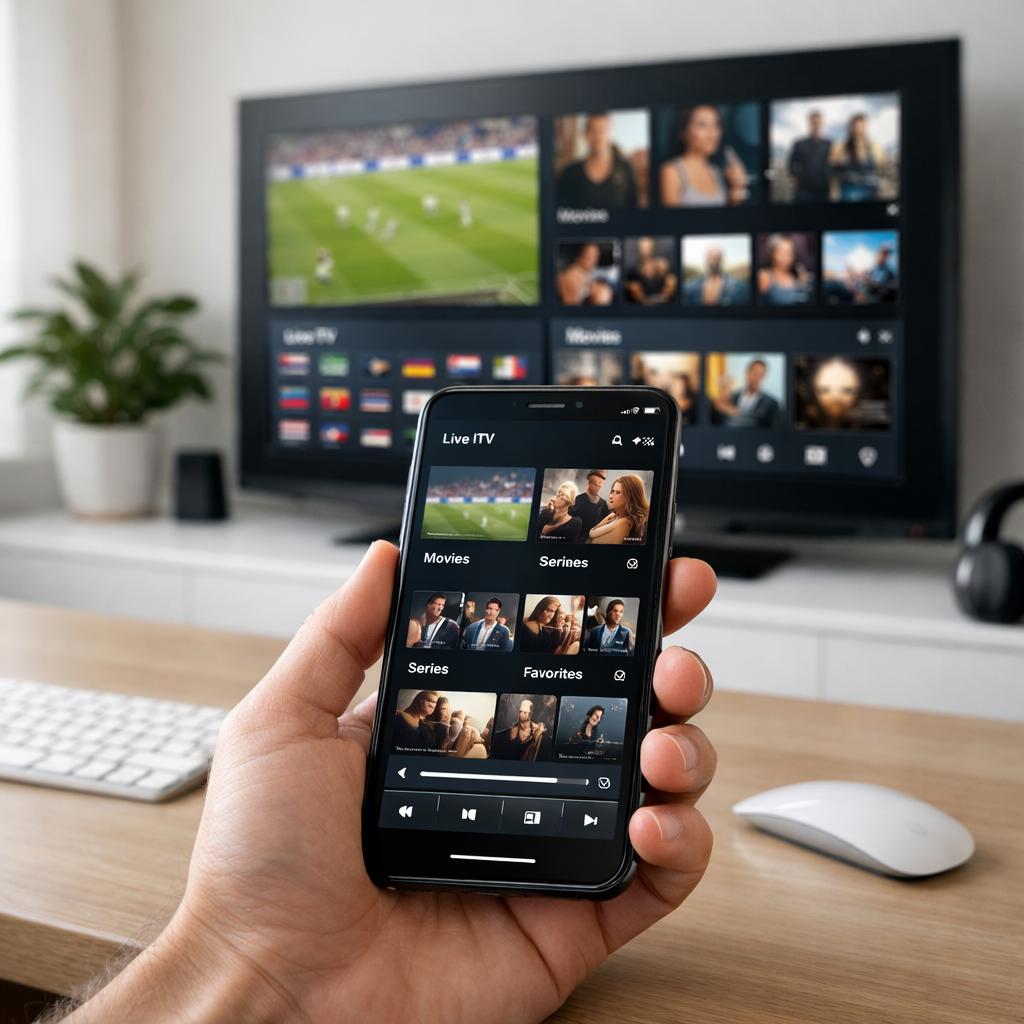
If you’ve been trying to set up Firestick for live TV and keep running into dead ends — wrong apps, buffering issues, or confusing configuration menus — you’re not alone. The good news is that with the right app (IPTV Smarters Pro is the go-to choice for most users in 2026), a reliable streaming playlist, and a few minutes of your time, your Amazon Firestick can become a full-blown live TV powerhouse. This guide walks you through every step, explains what actually matters, and saves you from the trial-and-error most people waste hours on.
What You Need Before You Start
Setting up live TV on a Firestick is genuinely straightforward — but only if you have the right ingredients in place before you begin. Missing even one of these elements leads to the frustration most people experience: apps that won’t launch, streams that won’t load, or channels that show a black screen.
Here is what you need:
- Amazon Firestick (any generation) — Fire TV Stick 4K Max is recommended for 4K HDR streams, but even the basic model handles 1080p HD without issues.
- A stable internet connection — At minimum, 10 Mbps for HD streams, 25+ Mbps for 4K. A 5GHz Wi-Fi band is strongly preferred over 2.4GHz to reduce buffering.
- A live TV streaming subscription — This means a valid M3U URL or Xtream Codes login from a provider. Without this, you have no content to play.
- A compatible IPTV app — IPTV Smarters Pro, TiviMate, or GSE Smart IPTV are the top choices in 2026.
- A free Amazon account — Already linked to your device if you’ve used it before.
One thing most guides skip: check whether your internet router is connected via Ethernet to a nearby smart TV or media device. If it is, move your Firestick closer to the router or consider a powerline adapter — these dramatically reduce buffering on live TV without rewiring anything.
Step 1 — Enable Apps from Unknown Sources
Amazon restricts Firestick to apps from its own store by default. Since IPTV Smarters Pro isn’t always available directly through the Fire TV App Store in every region, the standard approach is to enable sideloading — which Amazon itself makes available in the device settings.
Open Firestick Settings
From the Firestick home screen, navigate to the top menu bar and select Settings (the gear icon on the far right).
Go to My Fire TV
Scroll right and select My Fire TV. On older firmware versions, this may appear as Device.
Select Developer Options
Scroll down and tap Developer Options. If you don’t see it, your device may need a firmware update first.
Enable “Apps from Unknown Sources”
Toggle this setting to ON. Confirm any warning prompt that appears — this is a standard step and does not compromise your device.
Step 2 — Install the Downloader App
The Downloader app is the tool that lets your Firestick download and install APK files. It’s available directly from the Amazon App Store — no sideloading needed for this one.
- From the home screen, use the search icon and type “Downloader”
- Select the app by AFTVnews (orange icon) — it has millions of installs and is the industry-standard choice
- Press Download, then Open once installed
- When the app opens for the first time, accept the permissions request and dismiss the home screen tutorial
The Downloader app gives you a browser and a URL input box. You’ll use the URL field to download IPTV Smarters Pro in the next step.
Step 3 — Download & Install IPTV Smarters Pro
IPTV Smarters Pro is widely considered the most stable and feature-complete IPTV player available on Firestick in 2026. It supports M3U playlists, Xtream Codes API connections, EPG (Electronic Programme Guide), VOD libraries, catch-up TV, and multi-screen layouts — everything most users will ever need.
Open Downloader and Enter the APK URL
In the Downloader URL field, type the official APK download link for IPTV Smarters Pro. Use the latest version from the developer’s official source to avoid outdated builds.
Wait for the Download to Complete
The file is typically 20–40 MB. On a good connection this takes under 30 seconds. Do not close Downloader during the process.
Install the APK
Once downloaded, Downloader will prompt you to install. Select Install, wait for completion, then choose Done (not Open — you’ll launch it from your apps list).
Delete the APK File
Downloader will ask if you want to delete the installer file. Say Delete — the app is already installed and you don’t need the APK file taking up space.
Add to Home Screen
Long-press IPTV Smarters Pro in your app list and choose Move to Front or Add to Home Screen for quick access.
If IPTV Smarters Pro is available in the Amazon App Store in your region, you can install it directly from there without sideloading — search “IPTV Smarters” and look for the Whmcs-Smarters version.
Step 4 — Configure Your Playlist or Xtream Codes
This is where most setups either succeed or fail. IPTV Smarters Pro supports two primary connection methods, and understanding the difference between them saves significant troubleshooting time.
Method A — M3U Playlist URL
This is the simpler option. Your live TV provider gives you a direct URL ending in .m3u or containing your credentials. Inside IPTV Smarters Pro:
- Open the app and tap Add New User
- Select Load Your Playlist or File/URL
- Enter a name (e.g., “My Live TV”) and paste your M3U URL
- Tap Add User and let the playlist load
Method B — Xtream Codes API (Recommended)
This method is more reliable for large channel lists, EPG data, and VOD libraries. Your provider sends you three pieces of information: a server URL, a username, and a password.
- Open IPTV Smarters Pro → Add New User
- Select Xtream Codes API
- Fill in your server URL (e.g.,
http://yourprovider.com:port), username, and password - Tap Add User — the app will verify and import your full channel list and EPG
For a full walkthrough of playlist configuration specific to different providers, visit the LiveTV Access setup guide which covers common credential formats, troubleshooting connection errors, and EPG optimization in detail.
Step 5 — Optimize Firestick Performance for Live TV
A common experience after setting up live TV on Firestick is decent performance on day one, followed by progressive slowdowns, buffering, or crashes over the following weeks. This happens because Firestick has limited RAM (1–2 GB depending on model), and background processes eat into the resources your streaming app needs.
Clear Background Apps Regularly
Hold the Home button for 3 seconds to see recently used apps. Swipe up on any you don’t need. Alternatively, go to Settings → Applications → Manage Installed Applications, select each app you’re not using, and choose Force Stop and Clear Cache.
Disable Data Collection Features
- Go to Settings → Preferences → Privacy Settings
- Disable Device Usage Data and Collect App Usage Data
- Under Alexa Privacy, disable voice purchase and data sharing where possible
These features run background processes that compete with live video streams for processing priority.
Use an Ethernet Adapter
The Amazon Ethernet Adapter for Fire TV Stick (available for under $15) is one of the best investments for users who experience live TV buffering. Moving from Wi-Fi to a wired connection stabilizes latency, which matters far more for live streams than it does for on-demand content.
Adjust Video Buffer Settings in IPTV Smarters Pro
Inside the app, go to Settings → Video Player Settings and increase the buffer size from default to 10–15 seconds. This preloads a small segment of the stream, absorbing brief network fluctuations before they show up as buffering spinners on screen.
Best IPTV Players for Firestick Compared (2026)
IPTV Smarters Pro is the dominant recommendation, but it isn’t the only capable player. Here is how the main options compare on the metrics that matter for daily live TV use:
| App | Xtream Codes | M3U Support | EPG | Multi-Screen | Free Version |
|---|---|---|---|---|---|
| IPTV Smarters Pro | ✓ Yes | ✓ Yes | ✓ Yes | ✓ Yes | ✓ Free |
| TiviMate | ✓ Yes | ✓ Yes | ✓ Advanced | ✓ Yes | ⚠ Partial |
| GSE Smart IPTV | ✓ Yes | ✓ Yes | ✓ Yes | ✗ No | ✓ Free |
| Kodi (PVR add-on) | ⚠ Via add-on | ✓ Yes | ✓ Yes | ✗ No | ✓ Free |
TiviMate has the most polished UI and best EPG experience, but requires a paid “Premium” subscription (~$4.99/year) for full multi-screen and recording features. For users who want everything free and working out of the box, IPTV Smarters Pro remains the most practical starting point.
Common Setup Problems and Real Fixes
Even with a correct setup, live TV streaming on Firestick throws curveballs. These are the issues most users encounter, along with what actually fixes them (not the generic “restart your router” advice).
Problem: Channels Load but Show Black Screen
This almost always means a codec mismatch between the stream format and the default video decoder. Inside IPTV Smarters Pro, go to Settings → Video Player and switch the player from Auto to ExoPlayer. ExoPlayer handles H.265/HEVC streams that the default player fails on.
Problem: Playlist Loads But Channel List Is Empty
Your M3U URL may have expired or the provider has changed the playlist endpoint. Contact your provider for an updated URL. If using Xtream Codes, verify the server address hasn’t changed — providers occasionally migrate servers without notifying users.
Problem: Consistent Buffering on Live Sports
Live sports streams require significantly more bandwidth than standard channels due to fast motion and high bitrates. Switch your Firestick from 2.4GHz Wi-Fi to 5GHz in Settings → Network. If the router is far away, a Wi-Fi 6 mesh node placed near the TV solves this permanently.
Problem: App Crashes After a Few Minutes
This is almost always a RAM issue on older Firestick models. Go to Settings → Applications → Manage Installed Applications and clear the cache for every app you don’t regularly use. Also ensure IPTV Smarters Pro is on its latest version — check the developer’s site directly since Amazon’s App Store sometimes serves outdated versions.
How to Choose a Reliable Live TV Streaming Provider
Your streaming quality is ultimately determined by your provider — no app or device optimization compensates for a low-quality source. The market is crowded, and the differences between providers vary significantly in ways that aren’t obvious from a pricing page.
What to Actually Look For
- Server uptime guarantee — Reputable providers list uptime figures (look for 99.5%+ for live TV). Anything below that means dropped streams during peak viewing hours.
- Channel count vs. channel quality — A provider offering 10,000+ channels sounds impressive, but if 60% are dead links or SD quality, the number is meaningless. Ask for a trial to verify.
- EPG coverage — A provider with solid EPG data integrates cleanly with IPTV Smarters Pro’s programme guide. Without it, you’re navigating channels blind.
- Support responsiveness — Test it before you pay. Send a pre-sales question and time the response. A provider that ignores inquiries before the sale will do the same after.
- Simultaneous connections — Verify how many devices can stream simultaneously on a single subscription, especially for households with multiple TVs.
For those looking for a tested option in the English-speaking market, LiveTV Access positions itself as a reliable live TV streaming provider with verified uptime, full EPG support, and multi-device plans. You can review their live TV channels list before committing to confirm your specific channels are covered.
The Free Trial Question
Most credible providers offer a free trial ranging from 24 hours to 7 days. Always test during peak hours — typically weekend afternoons and major sporting event evenings. If a provider performs well during peak load, it will perform reliably at all other times. A provider that offers no trial period at all is a flag worth noting.
Ready to Start Streaming Live TV?
LiveTV Access offers a trial so you can verify channel quality, server stability, and EPG accuracy before choosing a plan. No long-term commitment required.
View Available Plans →Frequently Asked Questions
Conclusion
Setting up live TV streaming on Firestick in 2026 is genuinely one of the more rewarding home entertainment projects you can do in an afternoon. The process has become significantly simpler compared to even two years ago — IPTV Smarters Pro handles most of the complexity behind the scenes, and modern Firestick hardware is powerful enough to handle full 4K HDR streams without specialized equipment.
The steps that matter most: enable sideloading, install a reliable IPTV app, connect using Xtream Codes (not just an M3U URL if you can help it), optimize your device’s background resource usage, and choose a provider that you can actually verify with a trial before committing.
If you’re still evaluating providers, LiveTV Access is worth checking as part of your shortlist — particularly for EPG quality and server reliability. Their pricing plans are transparent and include trial options that let you verify performance before making a decision.
The best live TV setup is one you configure once and then forget about — because it simply works, every time you turn on the TV.
Leave a Comment
Have a question about setting up live TV on Firestick? Share your experience or ask below.
Your email address will not be published. Required fields are marked *