
Get Set Up in Minutes — Step-by-Step Guide for Every Device

Never set up an IPTV service before? No problem. This guide walks you through the whole process — from choosing your app to watching your first channel — on any device you own.

Smart TV, Android, iPhone, Fire TV, PC — pick your device below and follow the steps. Most people are done in under five minutes.

setup stream

Recommended apps: VLC Media Player, Web-based player

  1. Download and install a compatible media player on your computer
  2. Open the app and select the login or playlist option
  3. Enter the access details we send you after subscribing
  4. Start watching live TV directly on your screen

💡 Tip: VLC works on both Windows and Mac and is completely free to download.

Recommended apps: Smart IPTV (SIPTV), IPTV Smarters, TiviMate (Android TV)

  1. Open the app store on your Smart TV
  2. Search for and install one of the recommended apps above
  3. Open the app and choose your login method
  4. Enter your access details
  5. Refresh the content and start watching

💡 Tip: If your Smart TV runs Android TV, TiviMate gives the cleanest viewing experience.

Recommended apps: GSE Smart IPTV, Tivimite, Ibo Player Pro, Smart One IPTV

  1. Open the App Store and search for your preferred app
  2. Install and open the app
  3. Choose the login or M3U playlist option
  4. Enter your access details
  5. Refresh and start watching

💡 Tip: IPTV Smarters is free and handles large channel lists smoothly on iOS.

Recommended apps: IPTV Smarters, XCIPTV, TiviMate

  1. Open Google Play and install your preferred app
  2. Open the app and select your login option
  3. Enter your access details
  4. Let the content load and start watching

💡 Tip: TiviMate is the most popular choice among Android users for its clean interface and EPG support.

  1. When placing your order, send us your MAG device’s MAC address
  2. We link your subscription directly to the device
  3. You’ll receive a portal address from us
  4. Enter the portal address in your MAG device settings
  5. Restart the device and start watching instantly

💡 Tip: The MAC address is printed on a sticker on the bottom of your MAG box.

Recommended apps: IPTV Smarters, TiviMate

  1. Install a compatible media player from the Google Play Store
  2. Open the app and enter your access details
  3. Reload the content
  4. Sit back and start streaming on your TV

💡 Tip: Connect your Android box via ethernet cable for the most stable streaming experience.

Recommended apps: IPTV Smarters Player, iPlayTV, Ibo Player Pro

  1. Open the App Store on your Apple TV
  2. Download your preferred app
  3. Enter your subscription details
  4. Save the settings and refresh
  5. Start watching

💡 Tip: iPlayTV is specifically designed for Apple TV and offers a smooth, native experience.

Recommended apps: IPTV Smarters, TiviMate,Flix IPTV

  1. From your Fire Stick home screen, go to the app store
  2. Search for and install your preferred IPTV app
  3. Open the app and enter your access details
  4. Reload the content
  5. Enjoy live TV on your Fire Stick

💡 Tip: Enable “Apps from Unknown Sources” in your Fire Stick settings if your preferred app isn’t in the store.

Latest Streaming Guides & News

Ibo player pro

Activate Live TV on IBO Player Pro in 7 Easy Steps

IBO Player Pro is one of the most capable IPTV players for Android and Fire Stick devices — but the ...
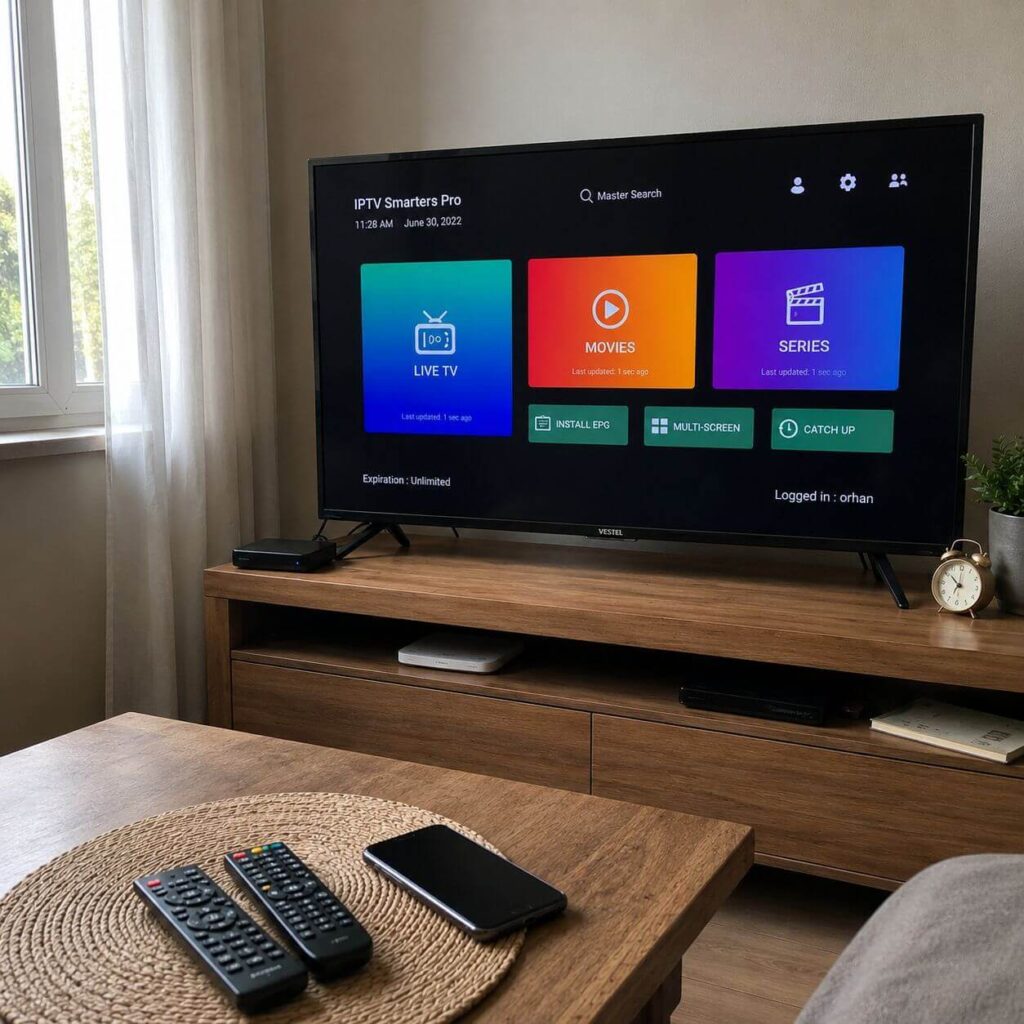
Best IPTV Players

Best IPTV Players in 2026 — Full Comparison for All Devices

Looking for the Best IPTV Players in 2026? This complete guide compares the most popular IPTV apps across all devices, ...

Common Mistakes

Common Mistakes People Make When Choosing a Live TV Service

Most live TV disappointments don't start with a bad service — they start with a flawed evaluation. This guide exposes ...
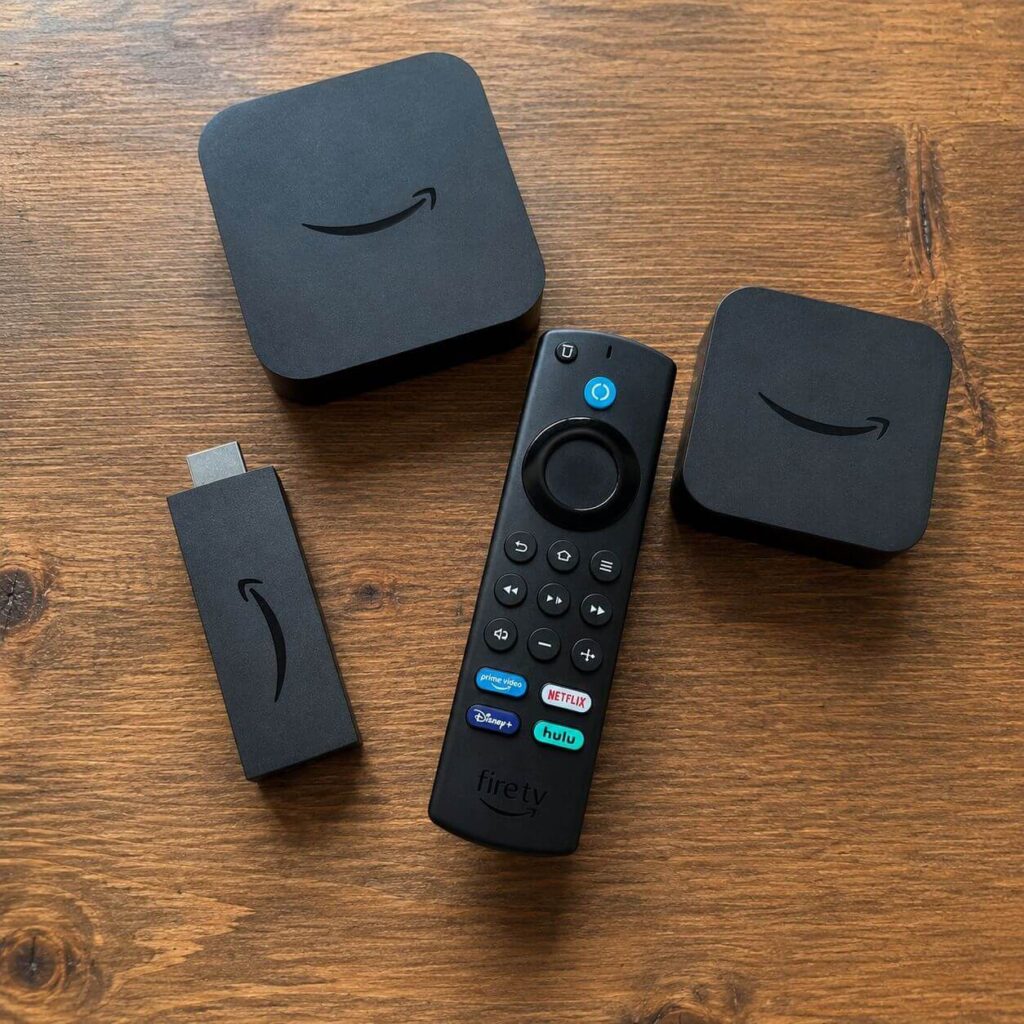
Set Up  Firestick

How to Set Up Live TV Streaming on Firestick in Minutes (2026 Guide)

Learn how to set up live TV streaming on Firestick step by step. Install IPTV Smarters Pro, configure your playlist, ...